Access rights to profiles in a team
Access rights to profiles in a team: tags, folders, and how to switch between them
Octo Browser 3.0 introduces profile folders. In addition to their role as a profile management tool, folders can be used to grant access rights within a team. Folders are an alternative to tag-based access rights management.
If your team uses tags to manage access rights, nothing has changed for you in Octo 3.0. Tag-based access rights work just as before; all settings have been saved. This article is for users who want to understand how folder-based access differs from tag-based access and how to switch between them if they would like to give it a try. For teams that did not use tags for access rights management prior to Octo 3.0, access rights management now works through folders. Tags still remain available for tagging and filtering profiles.
How tag-based access rights management works
Tag-based access rights management means "everything is open until you restrict it." To restrict which profiles a team member can see, they are assigned specific tags. The team member sees profiles with these tags only. Profiles without tags are visible to all team members by default. This means that every new profile without a tag is automatically accessible to the entire team, and if someone forgets to assign a tag, the profile becomes visible to people who shouldn't see it.
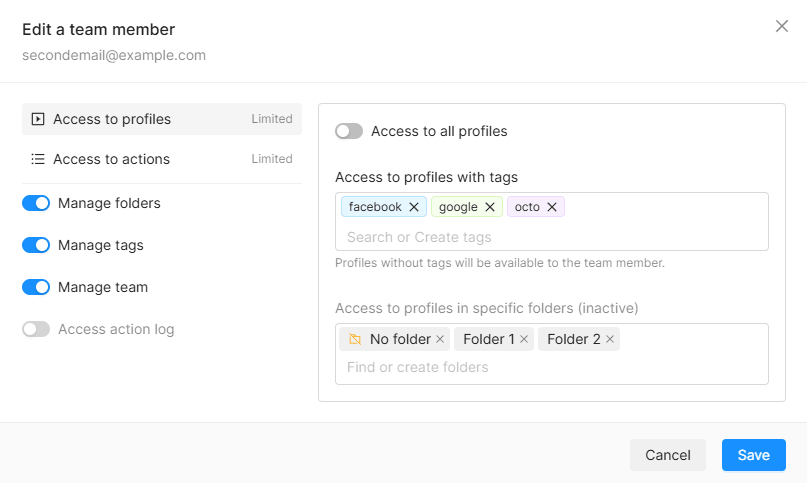
Tags serve two purposes: profile management (filtering) and access rights allocation. While there are only a few profiles and team members, tags are convenient. But as the team grows, these functions might begin to conflict: a tag intended for profile filtering might accidentally grant access to the unintended team members, while a tag created to grant access might clutter the filter list. Transferring profiles between team members is also based on tags: to transfer a profile, you need to assign a tag that the other team member has access to.
How folder-based access rights management works
Folder-based access works in the opposite way: "everything is restricted unless you grant access to it." Each team member is granted access to specific folders and can see only those folders. In the profiles list, a team member sees only the profiles from the folders available to them. You can also grant access to profiles without a folder. Without access to at least one folder or to profiles not assigned to folders, a team member will not be able to see any profiles. Each profile belongs to one folder only. This eliminates the ambiguity that arose with tags: there's no need to guess which of several tags a team member used to access the profile. Tags and folders can be used together. When access rights are managed using folders, tags do not affect the visibility of profiles and function as statuses or labels for filtering profiles within folders. All tags are shared between all folders.
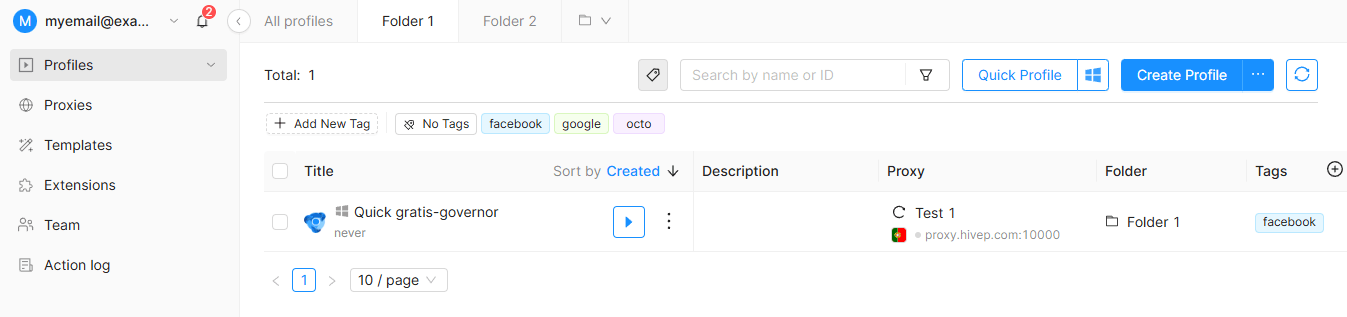
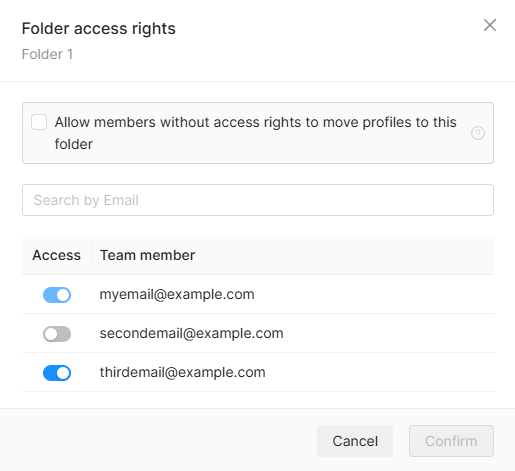
You can configure access rights permissions either from the team list in the settings or from the settings of an individual folder: you choose which team members can view the folder's contents. If you need to transfer a profile to another team, you can enable the setting "Allow members without access rights to move profiles to this folder" for the folder. A team member who does not have access to a specific folder will be able to choose it when transferring their profiles, but will not be able to view its contents. The profile will be transferred, and anyone with access to the destination folder will be able to work with it.
How to switch from tags to folders
The "Use folders to set access rights to profiles" toggle is located in the Team settings, at the top of the "Team" page. It is available only to teams that currently use tags to manage access rights.
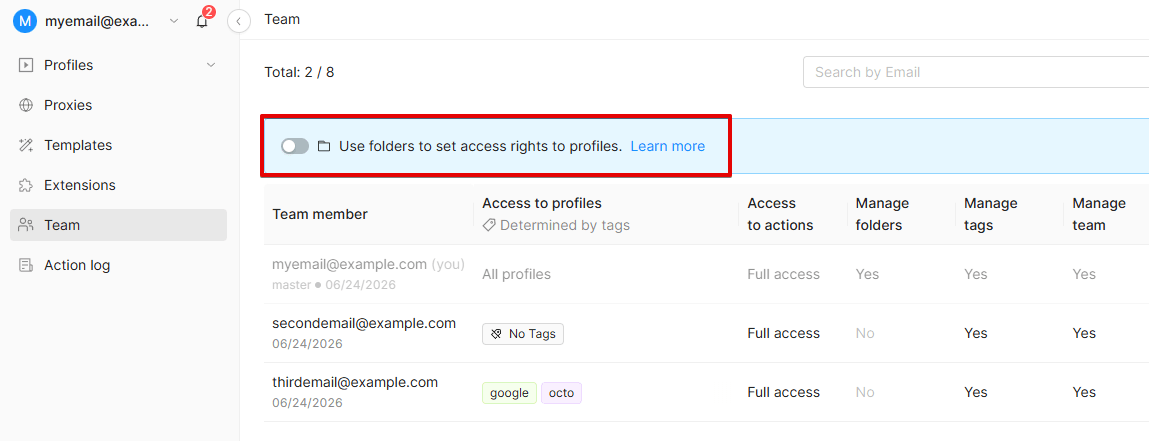
We recommend following these steps:
- Create the necessary folders and assign profiles to them.
- Open each team member's settings and assign folder access permissions using the "Access to profiles" tab. As long as this switch is off, folder-based access rights are not in place, but still saved. You can take your time getting everything ready.
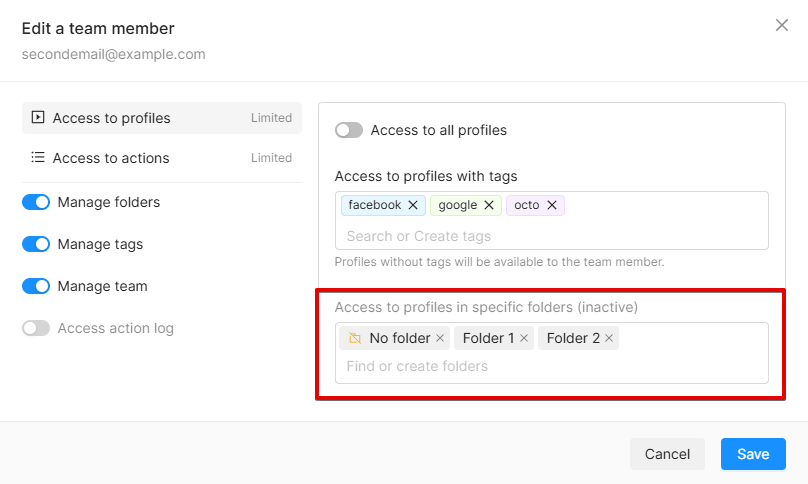
- Once all access rights have been properly set up, enable the switch. Octo will display a warning "Before enabling folder-based restrictions, we recommend setting up access rights to the required folders for team members. By default, profiles will only be visible members with full access."
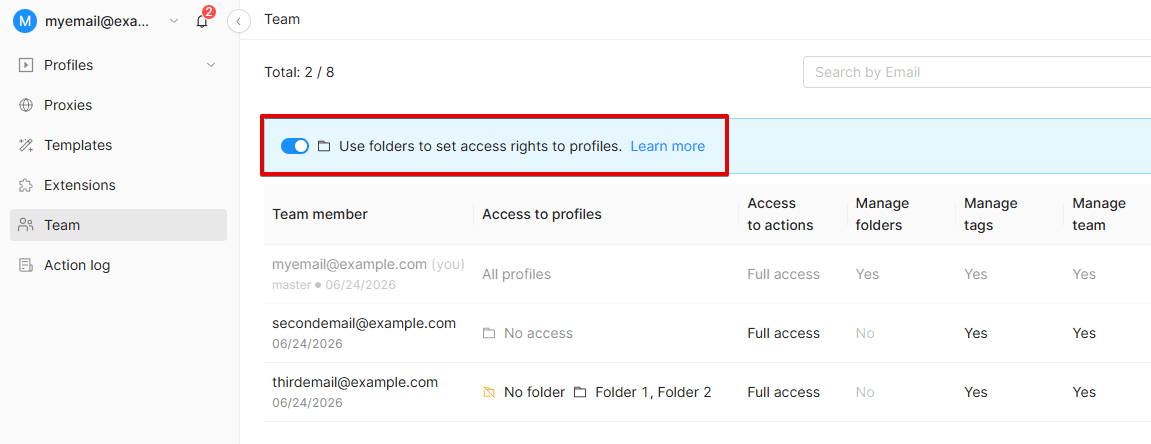
- Make sure that all team members can see the required profiles.
If something goes wrong, you can flip the switch back. Tag-based access rights will be restored to the state it was in at the time the switch to folders was made.
What happens if you flip the switch without preparation?
Nothing irreversible. Team members without assigned folders will simply no longer be able to see any profiles. The master account will still see everything. All you need to do is grant team members access to the necessary folders or switch back to tags.
Learn more about working with folders and setting up access rights.
Why are tags visible in one account but not in another?
Tags are an older feature that is not supported by the latest Octo version. Tags are still available for previously created accounts so as not to disrupt users' workflow within the team. We recommend switching to folders to ensure correct workflow.
If something goes wrong during the switch or you have any other questions, please contact Octo Customer Service, and we'll help you figure it out.